
NameCoach
NameCoach allows students and instructors to record the correct pronunciation of their names
What is NameCoach?
NameCoach is a Canvas integration that allows students and instructors to record their name so that others in the course can hear how to say their name correctly. Users can record their names via a web-based recorder or an automated phone call. The voice recorded pronunciations are available to faculty and students in the course in Canvas. Staff with access to the student records database, Campus Solutions, will also be able to access the voice recorded pronunciations for students.
NameCoach is enabled in all Canvas courses by default; however, instructors may choose to disable it. This page details how to record your name, edit a recording, listen to other's recordings, and send recording reminders to students.
Accessing NameCoach
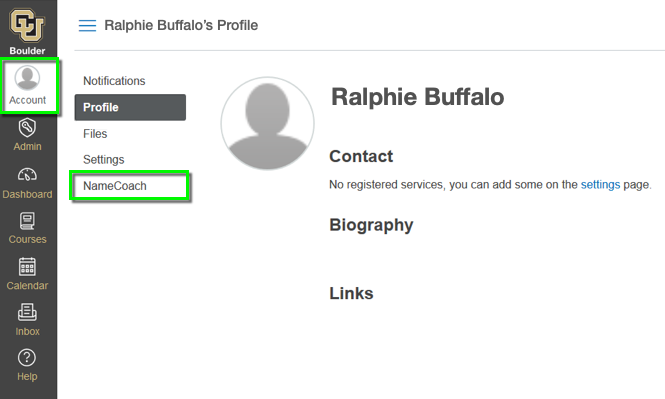
- There are two places you can access Namecoach to record or edit your name. From the Course Navigation Bar (Navbar) or from your Canvas account profile.
- The first time you access the NameCoach Integration you will be asked to allow NameCoach to access your account. Click Authorize.
- You only need to record your name once. Once recorded, it will appear in all of the courses that have NameCoach enabled.
Using NameCoach
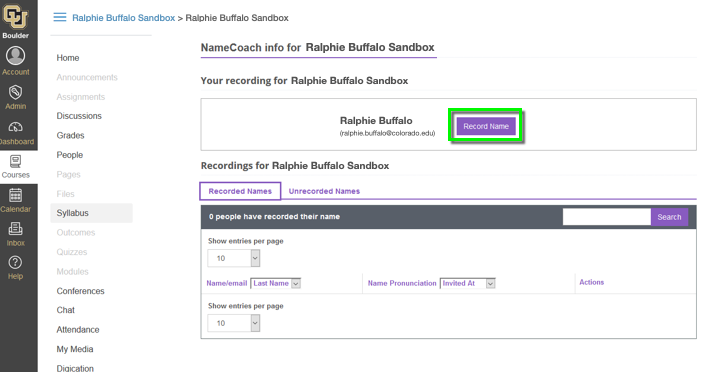
Record your name from either the Course Navigation Bar (Navbar) or your Canvas account profile. Making your recording in one location will update it in both locations.
- Click the Record Name button next to your name.
- Choose either Phone or Web Recorder to record or Uploader to upload an audio media file. If you choose Phone, enter your phone number to record your name over an automated phone call and click Submit and Call me. When recording, be sure to speak clearly and audibly into your device.
- If you choose Web Recorder to record your name using NameCoach’s web audio recorder, click the Record button, record your name, and click the Submit and Finish button.
- Listen to the recording by pressing the Play button next to your name. If you need to record it again, click Edit this recording.
- Editing your recording in one location will update it in both locations.
Listen to other recordings by navigating to the course navigation menu and click NameCoach. On the NameCoach Recorded Names screen, use the following options to navigate the roster and locate specific course members. Once you find the name of the person whose recording you want to play, click the corresponding Play student name.
- Pagination: By default, the NameCoach roster displays 10 entries per page. To display up to 100 entries per page, adjust the Show entries per page setting.
- Sorting: By default, entries in the NameCoach roster are sorted by last name. To change the sort order to "Last Name", "First Name", or "Email", use the Name/email sort menu. To change the sort order to "Recorded At" or "Invited At", use the Name Pronunciation sort menu.
- Searching: Use the search box to search for a person by first or last name.
Faculty may send recording reminders to their students. In the course navigation menu, click NameCoach.
- Click on the Unrecorded Names tab. If you do not see any names and are aware there are students in your course who have not recorded their names, refresh your browser and click the Unrecorded Names tab again.
- Click the Remind All button.
- Adjust the default email template and click Send Reminders. Please note: The 'from' address will be no-reply@name-coach.com.
Important: For faculty using the email composition feature, we recommend replacing the default template with the following messages to help students know how to access NameCoach:
Suggested Ask to Record Message:
Hello, {{first_name}},
The instructor for {{course_title}} wanted to remind you to please record your name at NameCoach, to help ensure it's announced or pronounced correctly.
You are able to access NameCoach by selecting Account in the Navigation Bar from within Canvas and then selecting NameCoach.
Thank you!
Suggested Re-record Reminder Message:
Hi, {{first_name}},
The instructor for {{course_title}} is requesting that you please re-record your name at NameCoach. Your recording may not have been clear, so please double-check it and record it again, to ensure your name is announced or pronounced correctly!
You are able to access NameCoach by selecting Account in the Navigation Bar from within Canvas and then selecting NameCoach.
Thank you!
Please note: Avoid adding images into email messages composed in the NameCoach interface since there is no way to add alt text to images through the rich content editor.
NameCoach in Outlook
NameCoach is also available in Outlook. Follow the steps below to add NameCoach to your Outlook account and record your name. Please note: The steps in this tutorial are from Outlook on the web, but the process in the Outlook desktop app is similar.
- In Outlook, go to the app bar on the left and click the More apps icon.
- Click Add apps.
- Type NameCoach in the search bar.
- Select the 'NameCoach for Outlook' search result and then click Add .
- A NameCoach tab will open upon installation.
Using NameCoach in Outlook
- Open an email, then click the Apps icon in the message's action bar. Please note: In Outlook for desktop, the NameCoach add-in appears in the Outlook ribbon.
- Select NameCoach for Outlook.
- In the NameCoach panel, select a name to hear it pronounced.
- To add a recording of your own name, click the Edit My Recording icon.
- To record your name now, click Record then click Start.
- To upload a pre-recorded MP3 file, skip ahead.
- Record your name and click Stop when finished. Please note: You have up to 10 seconds to record your name.
- Click the sound icon to listen to your recording. If satisfied, click the Save icon.
- If you'd prefer to upload a pre-recorded MP3 file, click Upload.
- To locate and upload the file, click Upload.
Help & Support
If you have questions about using or accessing NameCoach, please contact the OIT Service Desk at: oit@uccs.edu or at 719-255-4357.
Visit the Office of the Registrar's Name Changes and Updating Personal Information website to learn more about student records and name changes including preferred name, pronouns, and more. If you have questions about student records and name changes, please contact the Office of the Registrar at: registrar@uccs.edu or at 719-255-3361